
How to Create Exit Intent Popup That Recovers Carts
The average ecommerce cart-abandonment rate reached 76.98% in 2025, according to UpCounting's year-by-year analysis. Roughly three out of every four shoppers who take the time to pick products and add them to a cart still walk away without paying. Most store owners react to that leak by searching for how to create an exit intent popup, installing the first widget they find, and slapping a flat 10% coupon across every departing session.
That reflex creates two problems at once. First, a blanket discount hands margin to shoppers who would have bought anyway, while failing to answer the actual hesitation pushing other buyers out the door. Second, a poorly timed overlay fires during legitimate browsing or active checkout, turning a salvageable visit into a closed tab.
An exit popup only earns its place on a storefront when it diagnoses why a specific visitor is leaving before deciding what to show. I would always start by matching the exit message to the shopper's real objection, keeping discounts for the narrow cases where price is the blocker.
Table of Contents
- Match Each Popup to the Reason Visitors Leave
- When a Discount Helps and When It Hurts
- Build the Popup in Seven Steps
- Trigger Rules for Desktop and Mobile
- Connect the Popup to Shopify and Cart Whisper
- Benchmarks and How to Test Your Popup
- Launch a Holdout Test This Week
<a id="match-each-popup-to-the-reason-visitors-leave"></a>
Match Each Popup to the Reason Visitors Leave
A shopper who drops a cart because shipping surprised them has nothing in common with a buyer who isn't ready to commit today. Quantitative data from Baymard's cart abandonment research shows that 42% of US online shoppers who abandoned a cart were merely browsing or not ready to buy. Among the remaining objections, 40% left over extra costs that were too high, 20% cited slow delivery, 19% didn't trust the site with payment details, and 17% ran into a checkout process that felt too long or complicated.
Those figures reflect US online shoppers who abandoned a cart, so treat them as a starting map rather than your store's exact breakdown. A boutique furniture brand with freight charges will skew heavily toward delivery timelines and shipping fees, while a direct-to-consumer skincare store with high social ad traffic will see far more casual browsers. Check your own funnel drop-off points first, then map each exit scenario to one targeted response.
| Visitor situation | Trigger | Message focus | Recovery action |
|---|---|---|---|
| Browsing, not ready to buy (42% of abandoners) | Desktop cursor moves toward top edge | Save this cart and come back later | Saved cart or reminder option |
| Extra costs too high (40%) | Exit after viewing cart or shipping details | Shipping, tax or free-shipping threshold | Link back to cart with threshold shown |
| Slow delivery (20%) | Exit from product or cart page | Delivery estimate for the shopper's location | Open delivery information |
| Low trust in payment (19%) | Exit from cart or checkout-adjacent page | Returns, secure payment and contact details | Start a support conversation |
| Checkout too long or complicated (17%) | Exit from a checkout step | Fewer fields and guest checkout option | One-click return to the cart |
| High-value B2B cart left idle | Idle cart above a set value | Bulk pricing or invoice option | Talk to sales or request an invoice |
| Mobile visitor with no cursor | Back navigation or inactivity on cart page | Compact one-action message | Return to cart |
<a id="reading-your-store-signals-before-picking-a-row"></a>
Reading Your Store Signals Before Picking a Row
Each row in the table answers one friction point with one clear action and a visible close button. A browsing visitor doesn't want pressure to check out right now; offering a low-commitment way to save their cart or get a later reminder keeps the door open without eroding price perception. When a shopper views shipping details or removes an item from the cart, clarify taxes, shipping rates, or the remaining balance needed for free delivery instead of guessing at a coupon.
Trust objections require proof, not a markdown. If visitors abandon right before entering payment details, surface your return policy, payment security assurances, phone or email contact details, and a fast path to live support. Shoppers leaving a multi-step checkout flow need the shortest route back: a direct link to their preserved cart with unnecessary form fields stripped out.
Every exit popup should answer one documented objection and carry one button. Two competing offers inside the same overlay split attention and lower completion rates.
Wholesale and B2B buyers behave differently from retail browsers. A procurement manager who leaves a large cart idle while reviewing product specs or company policies rarely wants a consumer promo code. Triggering a message that offers bulk pricing, an invoice request, or direct sales assistance matches how B2B teams buy. Pick a single row from the table that matches your biggest leak, and build your first popup for that situation alone.
<a id="when-a-discount-helps-and-when-it-hurts"></a>
When a Discount Helps and When It Hurts
Running a sitewide discount on every exit looks productive on a popup dashboard because clicks climb fast. The problem hides on your profit-and-loss statement: repeat visitors learn to flick their mouse toward the address bar to harvest a code, and you end up discounting orders that were already going to close.
Apply a straightforward margin test before attaching any promo code. Compare the net profit of a recovered order after subtracting the discount against the profit you keep when shoppers buy at full price without the prompt. If the discount only shifts timing or cannibalizes buyers who would have returned through your abandoned cart recovery workflow, the popup is costing you money even if its conversion widget looks green.
<a id="where-incentives-earn-their-margin"></a>
Where Incentives Earn Their Margin
Email list growth is the one scenario where a discount-backed exit message consistently pulls its weight. According to Blippr's cart abandonment statistics, email-list capture through exit-intent popups achieved a 34% signup rate in 2025 when visitors were offered a future discount incentive. Offering a code for a later purchase lets you capture a first-time browser without marking down an active cart that might still convert at retail price.
For live carts, reserve immediate discounts strictly for sessions where the shopper has already viewed the final price and moved to leave, and scope the incentive to that specific cart. Consider a practical scenario: say a shopper builds a $60 cart that sits $1 below a store's free-shipping threshold. Firing a 10% exit coupon gives away $6 in pure margin to someone who might have bought anyway, whereas a popup highlighting the $1 gap and linking back to the cart nudges them to add a small item and increases average order value.
Margin check: Judge every exit offer by net profit after incentives, never by raw popup clicks, email sign-ups, or display counts.
<a id="build-the-popup-in-seven-steps"></a>
Build the Popup in Seven Steps
The gap between a sloppy overlay and a disciplined recovery flow shows up immediately in conversion data. A large-scale analysis cited by Sumo and reported in Leadyup's exit-intent statistics guide examined nearly 2 billion popup impressions and found an average conversion rate of approximately 3.09%, while the top 10% of campaigns reached at least 9.28%. A generic overlay may convert about 3 visitors per 100 displays, while relevant timing and crisp offer design can push that to 9 or more.
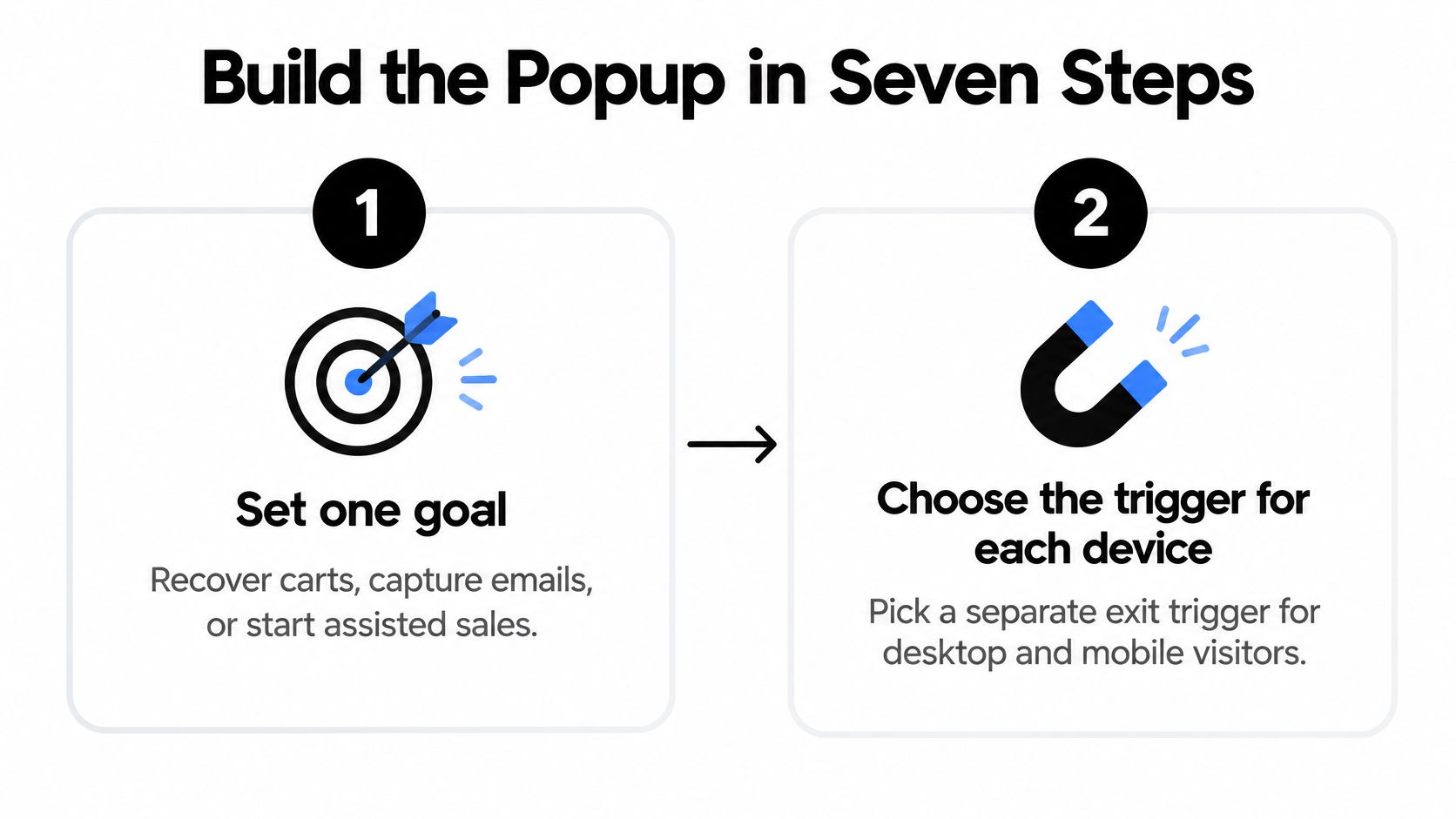
Follow these seven steps in order to build an exit popup you can ship in an afternoon.
- Set one primary goal. Decide whether this specific popup recovers active carts, captures emails from browsers, or opens an assisted sales conversation. Trying to collect a newsletter signup and rescue a checkout inside the same modal muddies the copy and tanks response rates.
- Choose device-specific triggers. Desktop sessions rely on cursor trajectory toward the top edge of the browser, while touch devices require behavioral signals like inactivity or back navigation. Copying a desktop script straight onto mobile either never fires or interrupts shoppers mid-scroll.
- Classify the session before displaying anything. Check live cart state, current product or category, device type, referral source, and whether the visitor already closed a popup during the visit. Skipping session classification is how a shopper who already placed an order ends up seeing a cart-saver overlay on the thank-you page.
- Write one headline and one recovery action. Pair a plain headline addressing the visitor's likely objection with a single button and an unmistakable close control in the upper corner. Cluttering the card with multi-field forms or tiny, low-contrast dismiss links drives frustrated bounces.
- Select the right offer tier. Pick from no incentive (cart save or reassurance), a shipping clarification, a direct support link, or a tightly conditional discount. Defaulting to a universal coupon here trains return shoppers to wait for the exit prompt before checking out.
- Configure strict frequency caps and exclusions. Limit displays using first-party storage to once per session and no more than once within a set window of days, and suppress the component for converted buyers and active checkout submissions. A popup that fires while a buyer is typing a credit card number actively kills completed sales.
- Ship an accessible, performance-safe component. Load the trigger logic and creative asynchronously so page rendering isn't blocked, isolate CSS styles, trap keyboard focus inside the open dialog, support the Escape key to close, add semantic dialog labels, maintain strong text contrast, and lock background scrolling. Overlooking keyboard and screen-reader behavior locks out assistive-technology users and breaks basic usability standards.
<a id="a-starting-script-for-custom-themes"></a>
A Starting Script for Custom Themes
If you're building directly inside a custom storefront theme without a third-party app, keep the desktop logic lightweight. Attach a mouseleave listener to the document element, verify that the event's clientY coordinate is 0 or less (confirming the pointer exited through the top boundary toward tabs or the address bar), and check a sessionStorage flag before rendering the overlay.
When the shopper dismisses or completes the popup, immediately write that dismissal flag to sessionStorage so it won't fire again during the session. Treat that lightweight listener as a baseline sketch, then verify its sensitivity against real browsing behavior on live traffic before expanding it to mobile sessions.
<a id="trigger-rules-for-desktop-and-mobile"></a>
Trigger Rules for Desktop and Mobile
Cursor-based detection works cleanly on laptops and desktops, yet mobile browsers have no pointer to track. Designing an exit-intent popup on mobile means replacing mouse tracking with indirect behavioral cues and accounting for tighter screen space.
| Device | Trigger signal | Limitation | Use it when |
|---|---|---|---|
| Desktop | Cursor moves rapidly toward the browser's top edge | Does not work on touch devices | Default for desktop browsing sessions |
| Mobile | Back-navigation intercept | Depends on browser and platform handling of history | Shopper taps back from a product or cart page |
| Mobile | Prolonged inactivity on cart page | Can fire while the shopper is reading | Cart holds items and checkout has not started |
| Mobile | Rapid upward scroll | Often normal navigation, so it misfires easily | Use only alongside another signal |
| Both | Checkout, form entry or prior dismissal | A suppression rule, not a trigger | Always suppress the popup here |
| Both | Cart value above a set threshold | Needs cart data from the app or theme | Targets high-value idle carts |
<a id="where-mobile-triggers-misfire-most"></a>
Where Mobile Triggers Misfire Most
Three mobile signals account for almost all annoying false positives. Rapid upward scrolling looks like exit intent on paper, yet phone shoppers constantly flick upward to re-read sizing charts, shipping tabs, or the sticky navigation bar. Never fire a mobile overlay on an upward scroll alone; pair it with another cue such as time spent on the cart page or an active cart balance.
Prolonged inactivity creates a similar trap when a buyer sets their phone down to grab a wallet or check a product dimension. Back-navigation interception works more reliably when a shopper backs out of a cart page, though iOS Safari and Android Chrome handle history events differently, so you must test on real hardware.
Performance data underscores why mobile needs its own testing track. Benchmark figures compiled in PushOwl's mobile exit-intent guide show mobile exit-intent conversion at roughly 2-3% compared to about 4% on desktop, even as mobile cart abandonment climbs above 85% in that dataset. Because engagement-based triggers generally outperform strict on-exit triggers on phones, with on-exit campaigns landing around 1.8% in one 2025 dataset, test an engagement rule on mobile head-to-head against your exit trigger rather than assuming exit intent wins.
Keep mobile overlays compact with large tap targets, minimal input fields, an obvious close icon, and clear consent wording whenever you request an email address or SMS number. Start with the right device trigger from the table above, then layer on a cart-value threshold so your highest-priority idle carts receive individual handling.
<a id="connect-the-popup-to-shopify-and-cart-whisper"></a>
Connect the Popup to Shopify and Cart Whisper
Running context-aware exit popups on Shopify gets much easier when the popup reads real-time cart behavior instead of guessing from a static URL. To install Cart Whisper | Live View Pro, you need a Shopify account, or you must log in to an existing one, and then select the store you want to connect.
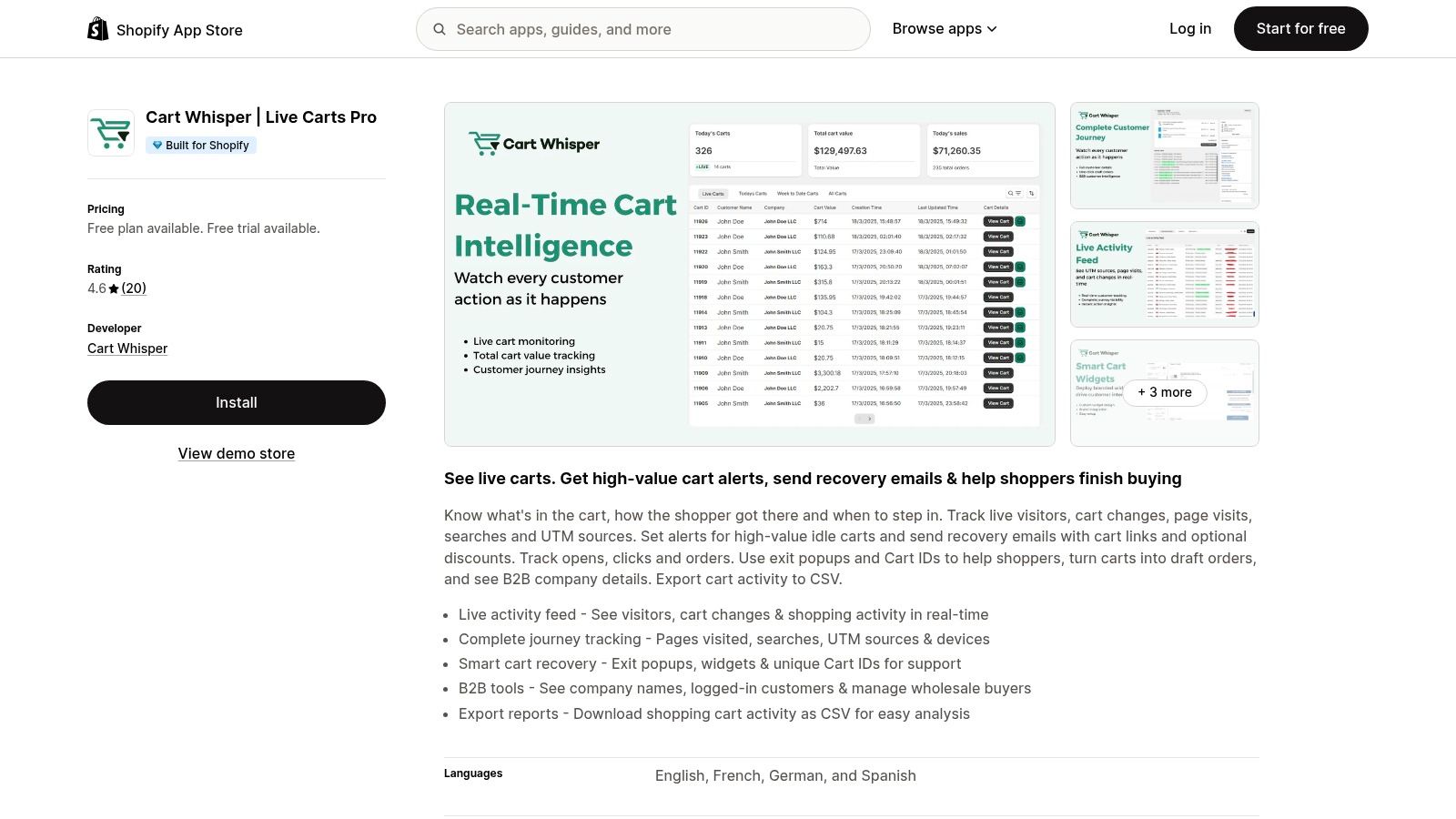
Once connected, the live activity feed shows which products shoppers view, what items they add or remove, and where they hesitate. Watching that stream reveals patterns you can't see in standard end-of-day reports: a customer repeatedly toggling shipping options or dropping one SKU out of a bundle tells you exactly what message your exit trigger should carry.
<a id="connecting-carts-to-support-and-b2b-draft-orders"></a>
Connecting Carts to Support and B2B Draft Orders
Static popups drop the thread the moment a shopper asks a question. Using unique Cart IDs links a visitor's exact cart directly to a support conversation, allowing your team to open that specific cart, check the contents, and help the buyer finish checking out without making them read SKUs aloud over chat or phone.
For wholesale or B2B stores, surfacing company details alongside idle high-value carts lets your popup route the buyer straight to assisted sales. Once that conversation starts, you can convert the shopper's active cart into a Shopify draft order to adjust volume pricing, apply custom shipping terms, or send a formal invoice directly to their accounting team.
<a id="pre-launch-checks-on-live-traffic"></a>
Pre-Launch Checks on Live Traffic
Preview modes rarely catch theme conflicts, sticky header overlap, or mobile viewport bugs. Before exposing all store traffic to a new exit rule, run these four checks directly on your live storefront:
- Watch your own session in the live feed: Open an incognito desktop window and a phone browser, add items to a cart, and confirm the live activity stream logs your product views and cart changes accurately.
- Trigger the exit popup on both devices: Test the desktop top-edge cursor move and your chosen mobile trigger to confirm the layout renders cleanly with reachable tap targets and a crisp close button.
- Verify dynamic cart and product context: Check that the displayed cart value, product details, or support Cart ID match the live items in your test basket.
- Walk straight through to checkout: Proceed into the checkout flow and submit test form fields to verify your suppression rules keep the popup completely hidden once payment entry begins.
Confirm every rule on live traffic over the first 24 hours rather than relying on theme editor previews, because third-party scripts and cookie consent banners behave differently in production.
<a id="benchmarks-and-how-to-test-your-popup"></a>
Benchmarks and How to Test Your Popup
Published conversion averages are a sanity check, not a revenue forecast. An email signup on a blog and a recovered $200 cart are different events, so one blended "popup rate" will send you after the wrong fix. I read outside ranges only after a holdout, and only to see whether the result sits in a normal band for that goal.
| Benchmark | Value | What it measures | How to use it |
|---|---|---|---|
| Average popup conversion across campaigns | a few percent of displays | Mixed goals across many campaigns | Typical band, not a target |
| Top 10% of popup campaigns | several times a weak median | Strongest campaigns in a broad set | What a tested, objection-matched popup can reach |
| Median lead-collection popup | 0.83% | 3,034 lead popups, Popupsmart popup conversion benchmark | Email capture only |
| Mobile exit-intent conversion | below the desktop rate | Mobile exit-intent popups | Expect a smaller share of exits to convert |
| Desktop exit-intent conversion | above mobile, still a small share of exits | Desktop exit-intent popups | Baseline for desktop comparison, not a revenue goal |
The spread is the point. That 0.83% median is email capture. It says nothing about a saved order. A commercial dataset cited in Flint's exit-intent statistics overview reported a 3.94% conversion rate across more than one billion displays. The same overview cites the Baymard usability benchmark: 65% of ecommerce sites deliver mediocre-or-worse checkout performance, and only 2% earn a good rating. Commercial tools often count any form submit, not a completed, profitable order. Track popup reads next to your abandoned cart recovery rate so you measure orders, not overlay clicks.
A desktop popup that "beats" the band with a blanket 10% code can still be a loss. If the shopper left because shipping was a surprise, the discount protected no margin and fixed no objection. Diagnose the leave reason first. Then judge the popup.
<a id="designing-a-clean-holdout-test"></a>
Designing a Clean Holdout Test
Isolate incremental lift before you call a popup a winner:
- Hold out an unexposed control group. Exclude a randomized slice of eligible departing sessions so you can see how many would have returned and purchased with no overlay.
- Change one variable at a time. Test the trigger, the headline, the recovery action, the incentive, the timing, or the audience rule. A new headline plus a 10% code in the same round makes the winner impossible to name.
- Segment the report. Split exposed versus holdout by device, traffic source, new versus returning visitor, and cart value. A strong desktop result hides a broken mobile trigger.
- Score incremental revenue and margin. Count recovered orders, revenue per exposed session, profit after discounts, and later return rates. Stop at click-through rate and you will fund a popup that trains people to wait for a code.
<a id="measurement-errors-that-corrupt-results"></a>
Measurement Errors That Corrupt Results
Three setup mistakes make a failing popup look profitable.
Attribution windows that treat a later branded search as a fresh popup conversion double-count shoppers who closed the overlay and came back on their own. Stacked widgets (a newsletter wheel, a cookie banner, and an exit popup on one page) depress every tool and annoy the visitor. An exit rule that fires in checkout inflates "assisted" conversions while interrupting people who were already paying.
Use the sessions the popup surfaces to fix the checkout those sessions expose. The overlay shows where people hesitate. Cutting extra form fields, stating shipping before the last step, and removing payment friction are what turn a one-time save into a higher baseline. A popup cannot outrun a checkout that fails the Baymard bar.
<a id="launch-a-holdout-test-this-week"></a>
Launch a Holdout Test This Week
You don't need five overlapping campaigns to see whether exit intent works on your store. Pick the single abandonment reason costing you the most revenue right now, whether that's surprise shipping fees on the cart page or first-time browsers leaving product pages without saving their picks. Pair that scenario with one device-appropriate trigger and the matching recovery action.
Set up your holdout group before flipping the switch and let the test run for at least one full weekly cycle so weekday and weekend shopping patterns balance out. Check desktop and phone behavior on live traffic on day one, paying special attention to checkout suppression so paying customers never get interrupted.
Decide what counts as a win before launch day: write down your minimum incremental revenue after incentives, target net margin, and acceptable order quality before looking at a single chart.
If your first round finishes flat against the holdout group, resist the urge to layer a second popup on top of it. Change one variable, such as swapping a generic headline for a specific shipping-threshold reminder or tightening the mobile trigger, and run another clean cycle.
For Shopify stores ready to put this into practice, Cart Whisper | Live View Pro pairs exit popups and unique Cart IDs with the ability to turn active carts into draft orders. The Free plan costs nothing to install and includes 100 carts per month, draft order conversion, a live activity feed, smart cart widgets, and exit intent popups. Stores processing higher volume can evaluate the Business plan, which includes 500 carts per month, 14-day cart history, high-value cart email alerts, and a 7-day free trial, giving you enough live cart visibility to diagnose exits and run your first holdout test cleanly.
Ready to replace guesswork discounts with exit popups built around live cart behavior? Cart Whisper | Live View Pro shows real-time shopper activity, connects unique Cart IDs to support conversations, converts B2B carts into draft orders, and lets you deploy targeted exit-intent popups straight inside Shopify. Install Cart Whisper | Live View Pro to start diagnosing why shoppers leave and launch your first measured holdout test this week.